



It’s easy to create a new game for your branch. You need to have current membership of Role Play Haven and you need to be given GM status by your Branch Committee. (Your Branch Manager can give you this status by logging in to their “My Account” and going to “Committee Portal” on their account “Dashboard”. Once there, they can “Manage GMs”.)
So, log in to your “My Account” on the RPH website. From the “Dashboard” choose “Create Game”. From now on it's pretty self explanatory.
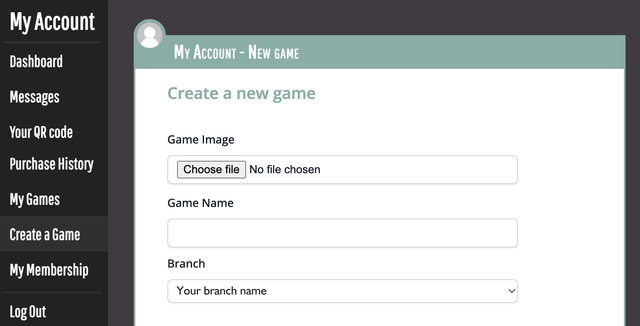
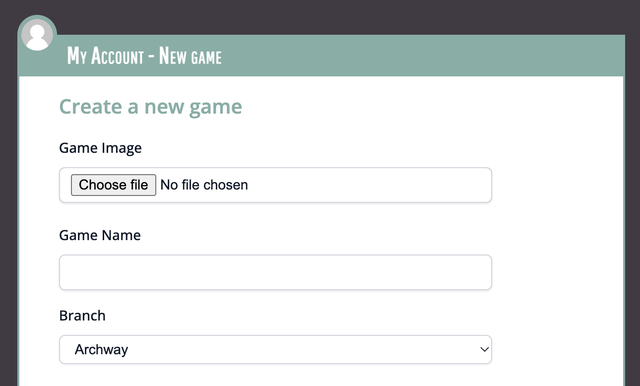
You will get the best response from players if you upload an exciting "Game Image". It could be a screenshot of the rulebook cover, or an action picture from the game’s publicity. Portrait or square shaped images work best. They will never display any wider than the length of your thumb, so try to choose something simple and bold. Use the “Choose Image” button to find and upload your image from your device.
The “Game Name” field is for the title of your adventure.
You can choose your branch name from the Branch dropdown list.
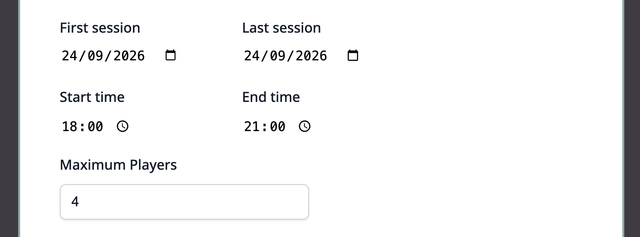
Click on the small calendar icons to set the dates for the First session and the Last Session of your campaign. You can check the start and finish dates for the Quarter, here on the website.
Click on the tiny clock icons to set the start and finish times for your branch sessions.
Choose the "Maximum" number of Players you are willing to accept on your table. You might want to consider allowing for the likelihood that someone may be off-sick or on holiday on some weeks.
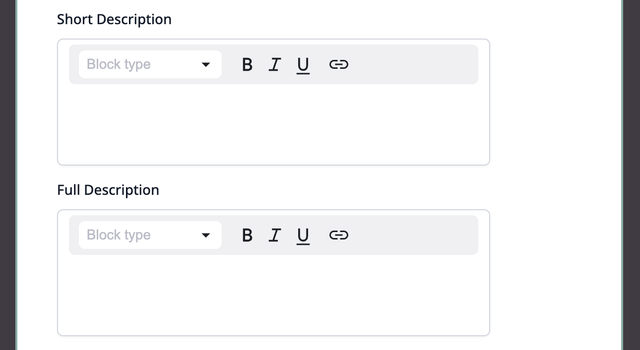
Writing the "Short Description" is very important. It’s your elevator pitch to sell the adventure to players and get them excited about joining the game. Imagine it as the blurb for a blockbuster film. Keep the rule mechanics out of this, other than naming the rule system.
The "Full Description" is where you can fill out the details and explain what's special about this adventure. This is where you can manage the players’ expectation of the game and you are recruiting players who fit your game style. It’s a good idea to list any potential trigger warnings about explicit material that might be upsetting for players. You can use Bold or Italic text and you could add a link to the website of the game publisher.
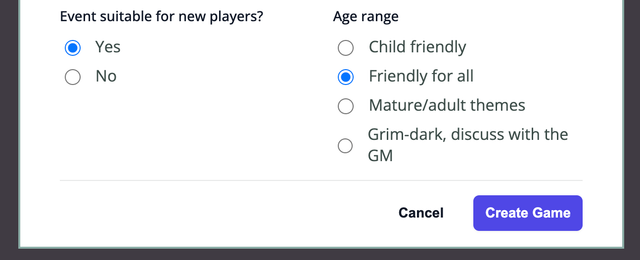
Finally you can tick those buttons to indicate whether you can welcome newbies and set the age-appropriate level of the adventure.
Hit the “Create Game” button. Phew! Just be patient while your Branch Manager or Games Coordinator checks and approves it, ready for players to "Join Game".
…and once your game is running don’t forget to hit the “Next Session Is On!” button every week, to remind Players to turn up. You can nag them on Discord, too, and it’s perfectly reasonable to ask them to let you know in good time if they can’t come along.